
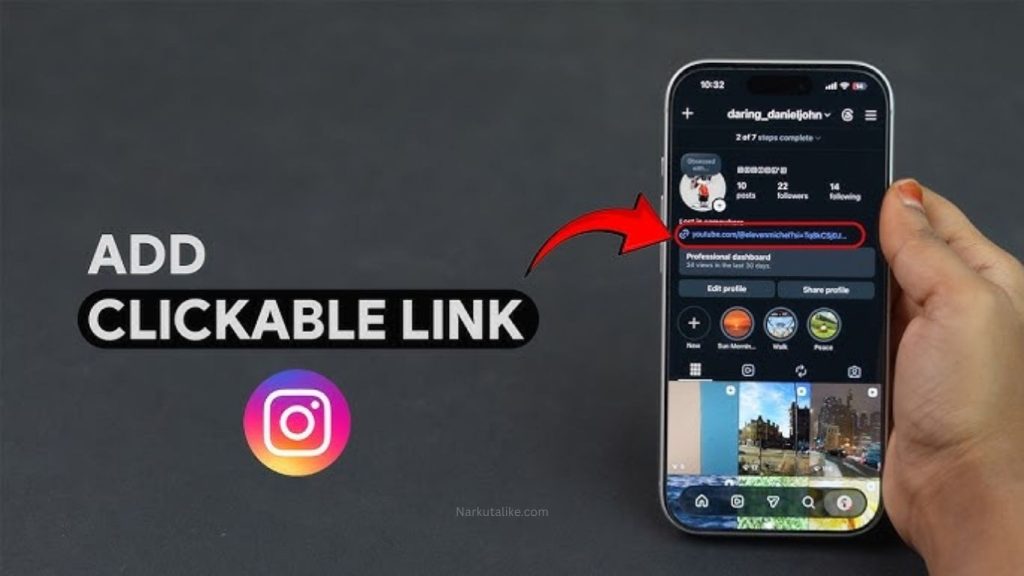
Instagram clickable link is not working, it can be frustrating, especially when you use Instagram to promote a website, online store, blog, portfolio, YouTube channel, or business. A link may fail to open, appear incorrectly, redirect to the wrong page, or work for you but not for other users. Fortunately, most Instagram link problems are caused by simple issues such as an incorrect URL, outdated Instagram app, browser problems, broken redirects, account restrictions, or temporary technical glitches. Understanding the exact cause can help you fix the problem quickly and make sure your Instagram visitors can reach the intended destination.
Why Is My Instagram Clickable Link Not Working?
One of the most common reasons an Instagram clickable link is not working is that the URL has been placed somewhere Instagram does not automatically turn it into a clickable link. Instagram supports clickable links through specific features, such as profile links and the Link sticker in Stories, while simply typing a website address into some areas may not create the same clickable experience. If you want people to visit your website from your profile, make sure the URL has been added through the appropriate profile link option. After adding it, view your profile from another account or device to confirm that the link appears correctly.
Check the URL Carefully
A small mistake in a website address can make an Instagram link appear broken. Check the URL for spelling mistakes, missing characters, spaces, incorrect domain extensions, or unnecessary symbols. It is better to copy the URL directly from your website instead of typing it manually. You should also open the URL in a regular browser before adding it to Instagram. If the page does not load outside Instagram, the problem is probably with the website rather than Instagram. Make sure the address uses the correct HTTPS version and leads to the exact page you want visitors to see.
Update the Instagram App
An outdated Instagram application can sometimes cause problems with links, Stories, profile features, or the in-app browser. If your clickable link worked previously but has suddenly stopped working, check your device’s official app store for an available Instagram update. Installing the latest version can fix bugs, improve compatibility, and restore features that may not function properly on older versions. After updating Instagram, close the application completely, reopen it, and test your link again.
Clear Instagram Cache
Cached information can occasionally interfere with Instagram features, particularly on Android devices. If you are using Android, open your phone’s settings, find Instagram in the application list, open its storage settings, and clear the cache. This can remove temporary files without necessarily deleting your account. On iPhone, there is no traditional cache-clearing option like Android, so restarting the device or reinstalling Instagram may be more useful. Always make sure you know your login details before reinstalling the application.
Test the Link in Another Browser
Sometimes the issue is not Instagram itself but the browser being used to open the destination. Instagram can open links through its own in-app browser, and certain websites may not function perfectly in that environment. If clicking your Instagram link results in a blank page, endless loading, or an error message, copy the URL and open it directly in Chrome, Safari, Firefox, or another browser. If the website works normally outside Instagram, the problem may be related to Instagram’s in-app browsing environment rather than your website.
Make Sure Your Website Is Working
Before changing your Instagram settings, confirm that the destination website is online. Open the link from another device or browser and check whether the page loads normally. Website problems such as server outages, expired domains, DNS errors, SSL certificate issues, hosting problems, or incorrect website configurations can prevent Instagram users from accessing your page. If your website recently moved to another hosting provider or underwent DNS changes, temporary availability problems may also occur. Fixing the website itself should be your priority if the URL fails outside Instagram.
Check for Broken Redirects
Redirects can also cause an Instagram link not working problem. If your Instagram URL sends visitors through several redirects before reaching the final page, a misconfigured redirect can create loading problems, security warnings, or redirect loops. This is particularly important when using URL shorteners, affiliate links, tracking links, or marketing platforms. Test the original URL and compare it with the Instagram version. If the direct URL works but the tracking or shortened version does not, replace the problematic link with a reliable destination or correct the redirect configuration.
Check Whether Instagram Has Restricted the Link
Instagram may restrict certain URLs if they are associated with suspicious activity, spam, deceptive pages, malware, excessive redirects, or other policy concerns. If Instagram displays a warning when you try to add a particular website, the problem may be connected to the domain itself. Make sure your website is secure, legitimate, accessible, and free from suspicious redirects. Avoid repeatedly submitting the same problematic URL without investigating why Instagram may be restricting it.
Remove and Add the Link Again
If the URL is correct but still does not work, try removing it from your Instagram profile and adding it again. Copy the URL somewhere safe, remove the existing link, save your profile, and then add the URL again through the appropriate link section. Save the changes and check your profile from another account or device. This can sometimes resolve temporary synchronization issues between your account and Instagram’s servers.
Restart Your Device and Internet Connection
A weak or unstable internet connection can make a valid Instagram link appear broken. Try switching between Wi-Fi and mobile data to determine whether the problem is network-related. You can also restart your router and mobile device before testing the link again. If the link works on mobile data but not on Wi-Fi, your network configuration, DNS settings, firewall, or internet service may be interfering with the connection.
Check Instagram Profile and Link Settings
Instagram frequently updates its interface and account features, so instructions from older tutorials may no longer exactly match the current application. Open your profile and check the current Edit Profile options to make sure you are using the correct link feature. Confirm that the URL has been saved successfully and that you are editing the correct Instagram account. It is also helpful to view your profile from another account because a link may appear correctly while you are logged in but behave differently for visitors.
Test the Link From Another Account
One of the easiest ways to identify the cause is to test your link from another Instagram account. Ask a friend to open your profile and click the link, or use another account on a different device. If the link works for everyone except you, the problem is likely related to your app, device, browser, network, cache, or account session. If the link fails for everyone, investigate the URL, website, Instagram settings, or possible platform-wide issues.
Log Out and Log Back In
A temporary account-session problem can occasionally affect Instagram features. Log out of Instagram, close the application, reopen it, and sign in again. Then visit your profile and test the clickable link. If the problem continues, reinstalling the Instagram application can provide a more complete reset. Before doing so, make sure you have your login information and access to any two-factor authentication method associated with your account.
Check for Instagram Technical Problems
Sometimes the issue is caused by Instagram itself. If your links suddenly stopped working after functioning normally, other users may be experiencing the same problem. Check recent reports of Instagram outages or ask other users whether links are working for them. When Instagram is experiencing a temporary technical issue, changing your URL or reinstalling the app may not solve the problem. In such cases, waiting for the platform to resolve the issue may be necessary.
Use a Clean and Mobile-Friendly URL
For better reliability, use a clean and trustworthy URL in your Instagram profile. Avoid unnecessary tracking parameters, excessive redirects, suspicious-looking short links, or complicated URL structures unless they are genuinely needed. Your destination page should also be mobile-friendly because most Instagram users access links from smartphones. A fast-loading, secure, responsive website provides a much better experience and can help reduce bounce rates.
Best Practices to Prevent Instagram Link Problems
The best way to avoid future link issues is to test your URLs regularly. Before promoting a link in your Instagram bio or Story, open it on both mobile and desktop devices and confirm that it reaches the correct page. Keep your website online, maintain a valid SSL certificate, monitor redirects, and update your Instagram application regularly. If you frequently promote multiple destinations, a reliable landing page can also make it easier to manage several links without constantly changing your Instagram profile.
Frequently Asked Questions
Why Is My Instagram Bio Link Not Clickable?
Your URL may not have been added through Instagram’s dedicated profile link feature, or the address may be incorrect. Open your profile settings, check the link section, and make sure the complete URL has been added and saved properly.
Why Does My Instagram Link Work for Me but Not Others?
This may be caused by account-specific behavior, cached information, device differences, or a problem with the destination website. Test the link from another account and device to determine whether the issue affects everyone.
Why Is My Instagram Story Link Not Working?
Make sure you are using the appropriate Link sticker and that the URL is complete and correct. You should also test the destination website outside Instagram to make sure the website itself is working.
Can an Outdated Instagram App Cause Link Problems?
Yes, an outdated app can contain bugs or compatibility issues that affect links and other features. Updating Instagram to the newest available version can often resolve these problems.
Why Does Instagram Open a Blank Page When I Click a Link?
A blank page can result from Instagram’s in-app browser, network problems, website errors, broken redirects, or browser compatibility issues. Try opening the URL directly in another browser to identify the cause.
Conclusion
Instagram clickable link is not working, do not immediately assume that your Instagram account is broken. Start with the basics by checking the URL, confirming that the website is online, and making sure the link has been added through a supported Instagram feature. Next, update Instagram, clear temporary data, test another browser or device, and check your internet connection. If the problem affects everyone, investigate the destination website or possible Instagram technical issues. By following these troubleshooting steps and regularly testing your links, you can keep your Instagram profile accessible and ensure that visitors can reach your website without unnecessary problems.