
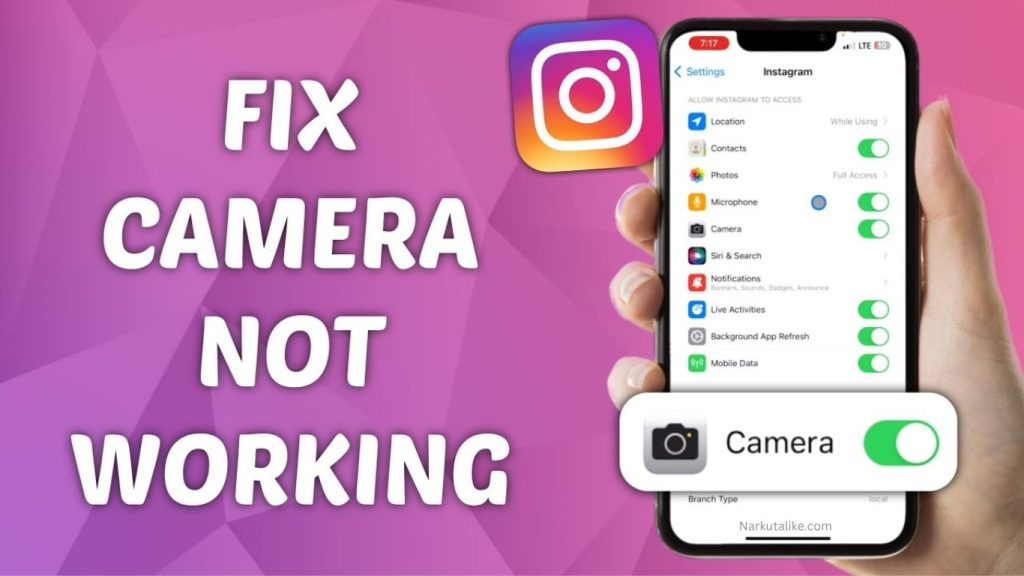
Instagram is one of the most widely used platforms for sharing photos, Stories, Reels, and videos, but sometimes users experience problems when the Instagram camera is not working. The camera may show a black screen, freeze, fail to open, or display missing filters and effects. These issues can happen on both Android and iPhone because of disabled permissions, outdated apps, temporary glitches, low storage, corrupted cache, or operating system problems. Fortunately, most Instagram camera issues can be resolved with a few simple troubleshooting methods. In this guide, you will learn the most effective ways to fix the Instagram camera not working on Android and iPhone.
Why Is Instagram Camera Not Working?
There are several reasons why Instagram’s camera may stop working properly. The most common reason is that Instagram does not have permission to access the camera or microphone. An outdated Instagram application can also create compatibility issues, while temporary bugs may cause the camera to freeze or display a black screen. On Android devices, corrupted cache files can affect Instagram’s performance, while low device storage can cause problems when capturing or processing photos and videos. In some cases, another application may be using the camera in the background, preventing Instagram from accessing it correctly. Identifying the possible cause makes it easier to choose the right solution.
Check Instagram Camera Permissions
The first thing you should check when Instagram’s camera is not working is the application’s camera permission. On Android, open Settings, go to Apps, select Instagram, tap Permissions, and make sure Camera access is allowed. You should also enable Microphone permission if you are experiencing problems with video recording. On iPhone, open Settings, find Instagram, and make sure the Camera permission is turned on. If Instagram does not have camera access, the application may show a black screen or fail to open the camera completely. After enabling the permission, close Instagram, reopen it, and test the camera.
Restart the Instagram App
A temporary software glitch may prevent Instagram’s camera from functioning normally. Completely closing the application and opening it again is one of the easiest solutions. On Android, open the recent apps menu and swipe Instagram away. On iPhone, open the app switcher and swipe Instagram upward to close it. Wait for a few seconds before launching Instagram again. If the camera starts working after restarting the application, the issue was likely caused by a temporary Instagram error.
Restart Your Android or iPhone
If restarting Instagram does not solve the problem, restart your smartphone. A device restart can refresh background processes and remove temporary software conflicts that may interfere with the camera. Turn off your Android phone or iPhone, wait a few seconds, and turn it back on. Once the phone has restarted, open Instagram and check the camera again. This simple method can often fix unexpected camera glitches without requiring additional changes.
Update Instagram to the Latest Version
Using an outdated version of Instagram can cause camera and filter problems, especially when your phone is running a newer version of Android or iOS. Open the Google Play Store on Android or the App Store on iPhone, search for Instagram, and check whether an update is available. If you see an Update option, install the latest version. App updates frequently include bug fixes, performance improvements, and compatibility changes that can resolve camera-related problems. After updating Instagram, restart the app and test the camera.
Clear Instagram Cache on Android
Android users can try clearing Instagram’s cache if the camera is freezing, crashing, or showing a black screen. Temporary or corrupted cache files can sometimes interfere with application functions. Go to Settings > Apps > Instagram > Storage and select Clear Cache. The exact menu names can differ depending on your Android phone manufacturer. Clearing the cache does not normally remove your Instagram account or posts, but avoid selecting Clear Data unless you are prepared to sign in again and reset the application’s local data.
Reinstall Instagram
If Instagram’s camera continues to malfunction after trying the basic fixes, reinstalling the app can provide a fresh installation. First, remove Instagram from your Android phone or iPhone and then download it again from the official Google Play Store or Apple App Store. Reinstalling can replace damaged application files and resolve problems that cannot be fixed by simply restarting the app. Before uninstalling Instagram, make sure you know your account login details because you may need to sign in again after installation.
Check Your Phone Storage
Insufficient storage can affect the performance of Instagram and other applications. When your phone is almost full, Instagram may have difficulty processing photos, recording videos, saving temporary files, or loading certain camera features. Check your device’s storage settings and remove unnecessary videos, duplicate photos, downloads, and unused applications if storage is low. Freeing up some space can improve overall device performance and may help resolve Instagram camera problems.
Close Other Apps Using the Camera
Sometimes another application may be accessing the camera in the background. Video calling apps, camera utilities, scanning applications, and other services can potentially interfere with Instagram’s camera access. Close other recently used applications and then reopen Instagram. If the camera works normally afterward, another app may have been creating a temporary conflict. Restarting your phone can also help release camera access from background processes.
Check Your Phone’s Camera
It is important to determine whether the problem is limited to Instagram or affects your entire phone. Open the built-in Camera application on your Android phone or iPhone and take a photo. If the normal camera works correctly but Instagram’s camera does not, the issue is probably related to Instagram, its permissions, or its software. However, if your phone’s standard Camera app also shows a black screen, crashes, or refuses to open, the problem may be related to your device’s operating system or camera hardware.
Update Android or iOS
Your phone’s operating system can affect how third-party applications access hardware features such as the camera. Android users should open their device’s Settings and look for Software Update or System Update, while iPhone users can go to Settings > General > Software Update. If a compatible update is available, install it and restart your device afterward. Keeping your smartphone updated can improve compatibility with Instagram and fix system-level bugs that may affect camera functionality.
Fix Instagram Black Screen
If Instagram opens the camera but displays only a black screen, start by checking camera permissions. If permissions are already enabled, completely close Instagram and restart your phone. You can also switch between the front and rear cameras to see whether the problem affects both cameras. Try opening the camera through Stories and Reels as well. If the built-in phone camera works normally but Instagram continues showing a black screen, updating, clearing the Android cache, or reinstalling Instagram may solve the issue.
Fix Instagram Camera Freezing or Lagging
An Instagram camera that freezes or becomes extremely slow can be caused by limited storage, insufficient device resources, an outdated app, or temporary software problems. Start by closing unnecessary background applications and restarting Instagram. If the problem remains, restart your phone and update Instagram. Android users can also clear the Instagram cache. If your device has very little free storage, remove unnecessary files to give Instagram more room to operate smoothly.
Fix Instagram Filters and Effects Not Working
Sometimes the camera itself works correctly, but Instagram filters and effects fail to load. This can happen because of an unstable internet connection, outdated application files, or temporary Instagram problems. Check your Wi-Fi or mobile data connection and make sure Instagram is updated. Restart the application and try loading the filters again. Keep in mind that some effects may be unavailable on certain devices, accounts, or locations, so a missing filter does not always indicate that your phone’s camera is faulty.
Check Your Internet Connection
Although your phone can take photos without an internet connection, many Instagram camera features rely on the internet to load filters, effects, music, and other content. If Stories or Reels camera features are not loading correctly, switch between Wi-Fi and mobile data to test your connection. If you are using Wi-Fi, restarting the router may also help. A stable internet connection can make Instagram’s camera-related features load more reliably.
When Should You Contact Instagram Support?
If you have tried all the basic troubleshooting methods and the Instagram camera still does not work, the problem could be caused by an Instagram bug, account-specific issue, device compatibility problem, or a deeper software error. Make sure both Instagram and your phone’s operating system are updated before seeking further assistance. If possible, test another Instagram account on the same device to determine whether the issue is account-related. If the normal phone Camera app is also malfunctioning, contacting your phone manufacturer’s support service may be more appropriate.
Frequently Asked Questions
Why Is My Instagram Camera Showing a Black Screen?
An Instagram camera black screen can be caused by disabled camera permissions, temporary application glitches, outdated software, or another app using the camera. Check permissions, restart Instagram, update the application, and restart your phone to troubleshoot the problem.
How Do I Enable Camera Access for Instagram on iPhone?
Open Settings, select Instagram, and make sure the Camera permission is enabled. You can also enable Microphone access if Instagram is having trouble recording videos with sound.
How Do I Clear Instagram Cache on Android?
Go to Settings > Apps > Instagram > Storage and select Clear Cache. The exact steps may vary depending on your Android phone’s manufacturer and software version.
Will Reinstalling Instagram Delete My Account?
No, reinstalling Instagram does not delete your account, photos, followers, or posts. However, you may need to sign in again after reinstalling the application, so make sure you know your login details.
Why Are Instagram Filters Not Working?
Instagram filters may fail because of a poor internet connection, outdated software, temporary app bugs, or filter availability restrictions. Try updating Instagram, checking your internet connection, restarting the application, or reinstalling it.
Conclusion
When the Instagram camera is not working, the problem is usually caused by a simple software or permission issue rather than a serious hardware failure. Start by checking camera permissions, restarting Instagram, and restarting your Android phone or iPhone. If the problem continues, update Instagram, clear the cache on Android, check storage space, update your operating system, or reinstall the application. You should also test your phone’s built-in Camera app to determine whether the issue is limited to Instagram. By following these simple solutions, most users can restore Instagram’s camera and continue enjoying Stories, Reels, photos, videos, filters, and other camera features.